
Welcome to EPH4
EPH4 is a privacy-first AI document intelligence platform that enables you to upload documents, ask natural language questions, and receive AI-powered answers with automatic chart generation.
Zero-Knowledge
No accounts, no emails, no tracking. Your data stays private.
Ephemeral
All data auto-deletes after your session expires. Nothing is stored.
Smart Charts
Automatically generates visualizations from your document data.
Multi-Format
Supports PDF, Word, Excel, CSV, and PowerPoint files.
EPH4 uses anonymous access keys instead of traditional accounts. Generate a free key and start analyzing documents immediately.
Quick Start Guide
Get started with EPH4 in four simple steps:
Generate Access Key
Visit eph4.ai and click "Generate Free Key" to receive your anonymous access key.
Save & Verify Key
Copy your key and paste it back to verify you've saved it. This key is your only way to access your session.
Upload Documents
Drag and drop your documents (PDF, Word, Excel, CSV, or PowerPoint) into the upload area.
Ask Questions
Type your questions in natural language and receive AI-powered answers with automatic visualizations.
System Requirements
EPH4 runs entirely in your web browser. Here's what you need:
Supported Browsers
- Google Chrome (recommended)
- Mozilla Firefox
- Microsoft Edge
- Safari 14+
Supported File Types
- PDF (.pdf)
- Word (.docx)
- Excel (.xlsx)
- CSV (.csv)
- PowerPoint (.pptx)
File Limitations
- Maximum file size: 75 MB
- Maximum uploads per session: varies by tier
- Supported languages: English (primary)
Access Keys
EPH4 uses access keys instead of traditional accounts to maintain your privacy. Keys are anonymous and don't require any personal information.
How Access Keys Work
- Key Generation: You generate a unique access key that's bound to your IP address.
- Key Verification: You verify you've saved the key by pasting it back.
- Session Start: Use your key to start an analysis session.
- Key Reuse: The same key can be used for multiple sessions until it's exhausted.
Your access key is your only way to start sessions. There's no password recovery since we don't collect your email. Store it securely.
Key Format
EPH4 access keys follow this format:
EPH4-FREE-a1b2c3d4e5f6g7h8
The prefix indicates the key tier (FREE, BASIC, PREMIUM, PRO, or WORKSPACE).
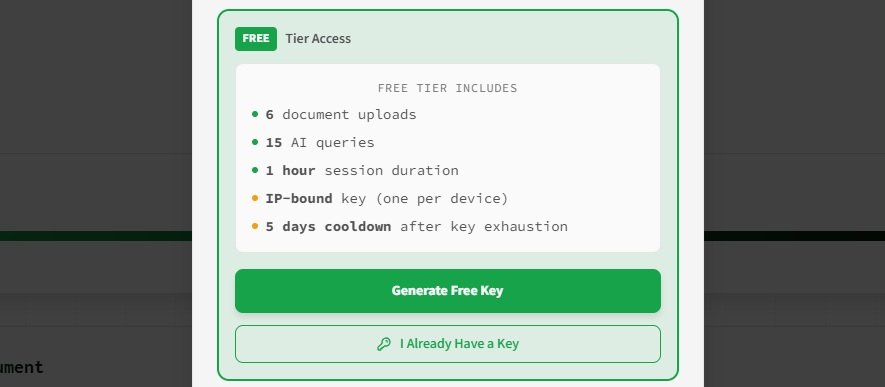
Free Tier
The free tier provides generous allowances for personal and evaluation use:
The free tier is completely free with no hidden costs or credit card requirements.
Starting a Session
Follow these steps to start your first EPH4 session:
Step 1: Generate Your Key
When you visit EPH4, you'll see the "Get Free Access Key" modal. Click the green button to generate your key.
Step 2: Copy and Save Your Key
Your unique access key will be displayed. Click the copy button and save it somewhere safe (password manager, notes app, etc.).
This is the only time your full key is displayed. Make sure to copy it before proceeding.
Step 3: Verify Your Key
Paste your key into the verification field to confirm you've saved it. This step ensures you won't lose access to your sessions.
Step 4: Start Your Session
Once verified, click "Start Session" to begin. Your session timer starts immediately, and you can now upload documents.
Already Have a Key?
If you've previously generated a key, click "I already have a key" on the initial modal to skip key generation and go directly to verification.
Session Management
Understanding how EPH4 sessions work helps you make the most of your time.
Session Timer
Your session duration depends on your tier. The timer is displayed in the header and shows:
- Time elapsed since session start
- A warning banner appears 5 minutes before expiry
- An auto-purge notification when your session ends
Session Metrics
The dashboard displays real-time metrics about your session:
Ending Your Session
You can manually end your session at any time by clicking the session controls. When a session ends (manually or automatically):
- All uploaded documents are permanently deleted
- All AI-generated embeddings are removed
- All chat history and answers are purged
- Your key remains valid for future sessions (if not exhausted)
Free tier users must wait 24 hours between sessions. This cooldown resets after each session ends.
Uploading Documents
EPH4 accepts various document formats for AI analysis.
How to Upload
You have two options for uploading documents:
- Drag & Drop: Drag files directly onto the upload area
- Browse Files: Click "+ Upload Document" button to open file browser
Supported Formats
Upload Process
After selecting a file:
- The file preview appears showing name, type, and size
- Click "Upload & Process Document" to begin
- EPH4 extracts all text and tables from your document
- The document appears in your sidebar when ready
Document Status Indicators
The first question you ask about a document triggers AI indexing, which takes 30-60 seconds. Subsequent questions are much faster.
Asking Questions
EPH4's AI understands natural language questions about your documents.
Before You Ask
- Upload at least one document
- Select the document from the sidebar
- Click "Integrate AI Analysis" to enable questioning
Question Best Practices
- "What was the total revenue for Q4 2023?"
- "Show me the breakdown of expenses by category"
- "Compare year-over-year growth rates"
- "What are the key findings in the executive summary?"
- "Show revenue by quarter with percentages"
- "List all financial metrics from page 5-10"
- "Extract the balance sheet data as a table"
- "Compare Q1 vs Q4 operating margins"
Getting Answers
After asking a question:
- EPH4 searches your document for relevant content
- AI analyzes the context and generates an answer
- Charts are automatically generated for numerical data
- Source references show where the data came from
Extraction Modes
EPH4 offers three extraction modes optimized for different types of questions and documents.
Charts Mode
RecommendedBest for financial documents, reports with tables, and numerical analysis. Automatically generates visualizations.
Text Mode
GeneralBest for narrative documents, contracts, and general text analysis where you need detailed written answers.
Pattern Mode
SpecificBest for finding specific patterns, codes, references, or structured data like IDs and dates.
How to Switch Modes
After selecting a document and clicking "Integrate AI Analysis", you'll see the Output Format selector. Click on the mode you want to use before asking your question.
Charts & Visualizations
EPH4 automatically generates charts when your questions involve numerical data.
Available Chart Types
Using the Chart Gallery
- Ask a question that involves numerical data (using Charts mode)
- EPH4 analyzes your document and extracts metrics
- Available chart types light up in the Chart Gallery
- Click any available chart type to view the visualization
- Charts show the number of metrics that can be displayed
Questions like "show revenue by quarter" or "compare expenses across departments" generate better charts than vague questions.
Workspace (Enterprise)
Workspaces provide dedicated environments for teams and organizations with extended capabilities.
Accessing Your Workspace
Workspaces are accessed via custom URLs:
https://eph4.ai/workspace/your-organization-name
Your workspace administrator will provide you with:
- Your workspace URL
- Your workspace access key
Backup & Restore
Workspace tier users can backup and restore their document data for continuity across sessions.
Backup and restore features are only available for Workspace tier users.
Creating a Backup
- Navigate to the Workspace Backup section
- Click "Export Backup"
- Your documents and embeddings are packaged securely
- Download or note the backup ID for later restoration
Restoring from Backup
- Click "Import Backup" in the Workspace Backup section
- Enter your backup ID or upload backup file
- Confirm restoration
- Your documents and analysis state are restored
Privacy & Security
EPH4 is built from the ground up with privacy as the core principle.
Zero-Knowledge Architecture
We never see your documents in plain text. All processing happens with encrypted data, and we have no way to access your content.
No Account Required
No email, no password, no personal information. Access keys are anonymous and not tied to any identity.
Automatic Data Deletion
All data is automatically and permanently deleted when your session expires. No manual cleanup needed.
Military-Grade Encryption
Your document content is protected with AES-256 encryption, the same standard used by banks and governments.
Data Handling
Understanding how EPH4 handles your data at each step.
Upload
Your document is transmitted securely over HTTPS and immediately encrypted upon receipt.
Processing
Text is extracted and split into chunks. Each chunk is encrypted before storage.
Analysis
AI analyzes encrypted chunks to generate answers. Only relevant portions are decrypted temporarily.
Deletion
When your session ends, all data is permanently deleted from all systems.
Encryption
EPH4 uses industry-standard encryption to protect your documents.
AES-256 Encryption
Advanced Encryption Standard with 256-bit keys
- Used by US government for classified information
- Considered unbreakable with current technology
- Bank-level security standard
What's Encrypted
- All document content (text, tables, metadata)
- All AI embeddings and indexes
- All communication between your browser and our servers (TLS/SSL)
Frequently Asked Questions
All your data is permanently and irreversibly deleted. This includes uploaded documents, extracted text, AI embeddings, and any generated answers or charts. Nothing remains on our systems.
Session duration is fixed by your tier. Free tier sessions last 1 hour. To get longer sessions, you can upgrade to a paid tier (Basic: 3 hours, Premium: 8 hours, Pro: 24 hours, Workspace: 30 days).
No, we cannot recover lost keys. This is by design - we don't store any identifiable information that would allow us to link you to your key. If you lose your key, you'll need to generate a new one after any applicable cooldown period.
The first question triggers AI indexing of your document. This creates semantic embeddings that allow for intelligent search. This process takes 30-60 seconds but only happens once per document. All subsequent questions are much faster.
EPH4 supports PDF (.pdf), Microsoft Word (.docx), Microsoft Excel (.xlsx), CSV (.csv), and Microsoft PowerPoint (.pptx). Maximum file size is 75 MB per file.
Yes. EPH4 uses AES-256 encryption and a zero-knowledge architecture specifically designed for sensitive documents. Your data is encrypted at rest and in transit, and is automatically deleted when your session ends. For enterprise use with extended retention, consider the Workspace tier.
Free tier users must wait 24 hours between sessions. This is a rate limit to ensure fair usage. The cooldown starts when your session ends (either naturally or manually). Paid tiers do not have this cooldown.
EPH4 uses advanced AI models with built-in hallucination detection specifically for financial and business documents. Answers always include source references so you can verify the information. For best results, use specific questions and the appropriate extraction mode.
Troubleshooting
Common issues and how to resolve them.
"Upload limit reached" error
Cause: You've reached the maximum number of uploads for your session.
Solution: Delete unused documents or wait for your next session. Consider upgrading for higher limits.
"Session cooldown active" error
Cause: You're trying to start a new session before the 24-hour cooldown has passed.
Solution: Wait for the cooldown to expire, or upgrade to a paid tier which has no cooldown.
"Invalid key" error
Cause: The key you entered doesn't match any valid key in our system.
Solution: Double-check you've copied the complete key. Keys are case-sensitive and include dashes.
"Key exhausted" error
Cause: Your free key has been used for all available sessions.
Solution: Wait for the 5-day cooldown to generate a new key, or upgrade to a paid tier.
Document not processing
Cause: The file may be corrupted, password-protected, or in an unsupported format.
Solution: Ensure the file is not password-protected and is one of the supported formats (PDF, DOCX, XLSX, CSV, PPTX).
Charts not generating
Cause: Your question doesn't contain numerical data, or you're using Text mode.
Solution: Switch to "Charts" extraction mode and ask questions that involve numbers, metrics, or comparisons.
Support
Need help? Here's how to get support.